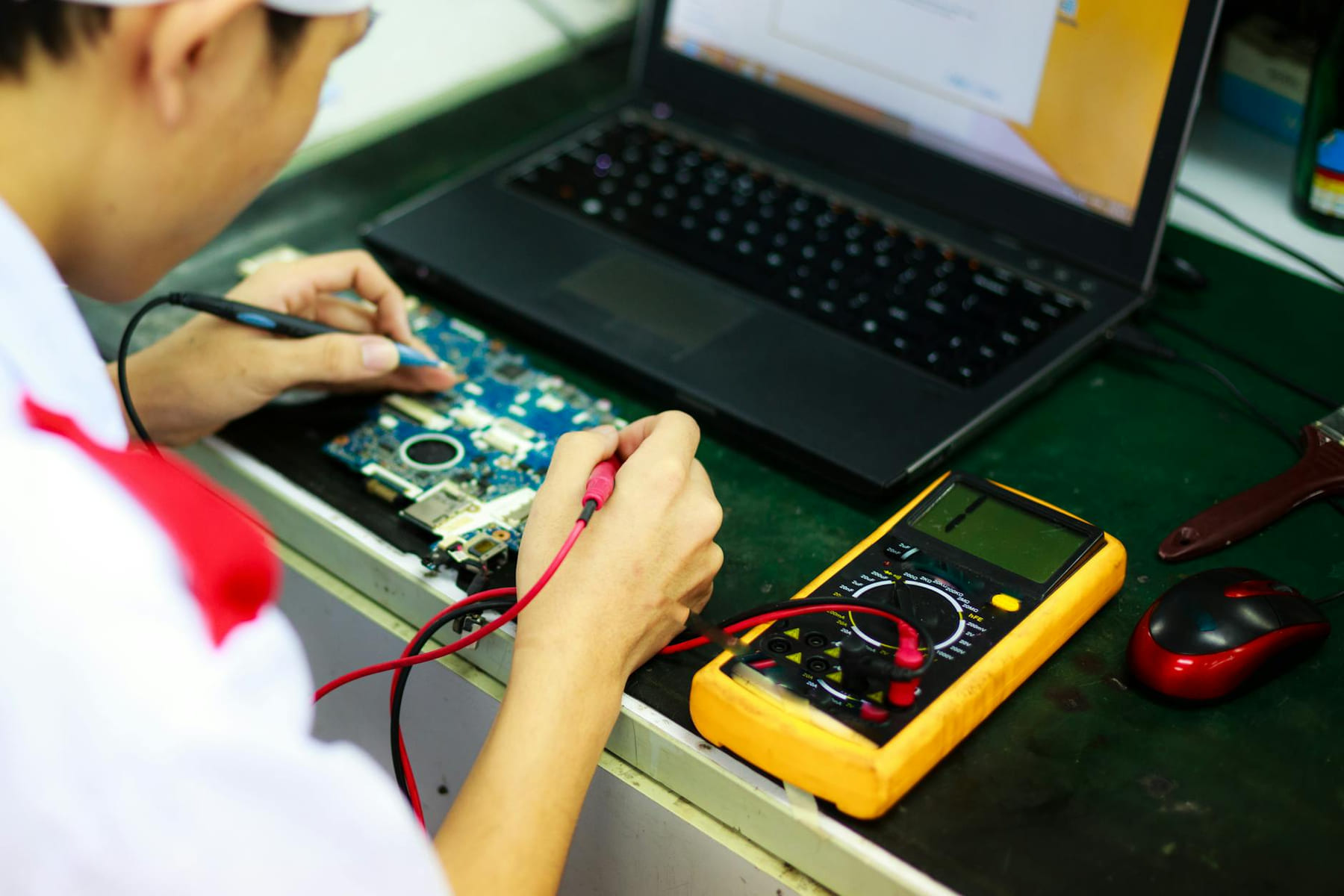
Ever had that sinking feeling? You snagged a fantastic deal on a smart speaker, a streaming device, or a pair of headphones - something that seemed like a brilliant investment. Then, a few days in, or even just an hour, it starts acting…off. The smart speaker refuses to connect, your streaming device keeps buffering, or your headphones just…stop working. It’s frustrating, especially when you’ve already been careful about your budget. You don’t need to shell out a fortune for a tech repair shop to sort it out. this post is for you - someone who’s comfortable tackling a little DIY and wants to get the most out of their affordable tech. “You don’t need to spend a fortune to get your tech working right. this post will help you diagnose and fix many common issues with your budget devices.” Let’s be honest, buying budget tech often means accepting a slightly higher chance of a minor hiccup. But that doesn’t mean you’re stuck. Most problems are surprisingly simple to fix with a little patience and a systematic approach. We’re going to look at some of the most common issues you’ll likely encounter with smart speakers, displays, streaming devices, and headphones - all without breaking the bank.
Smart Speaker Troubleshooting: Voice Control Woes (Budget Tech)
Smart speakers - those little voice-activated assistants - are incredibly convenient, but they can be a bit temperamental. Connectivity issues are probably the most frequent complaint, and it’s rarely a hardware problem; usually, it’s something easily fixed. First things first: a simple restart. Power down your smart speaker, unplug it from the wall for about 30 seconds, and then plug it back in. It sounds basic, but it often works wonders. Next, take a look at your Wi-Fi network. Is it stable? Run a speed test on your phone - you want at least 20 Mbps for optimal performance. If your Wi-Fi is weak, consider moving your speaker closer to your router, or exploring a Wi-Fi extender. Bluetooth pairing can also be tricky. Make sure your speaker is in pairing mode (usually indicated by a blinking light). And double-check that your phone or tablet isn’t already connected to another device that might be hogging the Bluetooth bandwidth. Updating the speaker’s firmware is another easy step. Most smart speakers have a built-in way to check for updates - usually through the companion app. Finally, re-linking the speaker to your account through the app can sometimes clear up connectivity issues. It’s like giving it a fresh start. Resource: You might find a helpful video walkthrough on YouTube that covers smart speaker troubleshooting in detail: (Just a placeholder - there are tons of great ones out there!)
Smart Display Diagnostics: When the Screen Just…Doesn’t
Smart displays - those screens with built-in assistants - are fantastic for displaying photos, controlling smart home devices, and browsing the web. but they can be prone to freezing, unresponsive touchscreens, and audio problems. Software updates are crucial for smart displays. Manufacturers are constantly releasing updates that fix bugs and improve performance. Regularly check for updates in the display’s settings menu. Next, give your display a quick hardware check. Are the cables securely connected? A loose cable is a surprisingly common culprit. Also, inspect the screen itself for any cracks or damage. If you’re still having trouble, a factory reset might be necessary. Be warned: this will erase all your settings and data, so back up anything important first. The process varies depending on the model, but it’s usually found in the settings menu under “System” or “Reset.” Don’t hesitate to consult the manufacturer’s support page for your specific model - they’ll have detailed instructions: (Again, a placeholder - find the actual support page).
Streaming Device Problems: Buffering Blues
Streaming devices - Roku, Chromecast, Amazon Fire Stick - are essential for enjoying movies, TV shows, and music on your big screen. But they can be frustratingly unreliable, often plagued by buffering, pixelation, and a general inability to recognize your sources. Start with your network. Run a speed test to make sure you have a stable internet connection. Streaming devices need a decent bandwidth to deliver high-quality video. If your Wi-Fi signal is weak, try moving your device closer to the router or using a Wi-Fi extender. A device reset is often effective. The method varies by device, but it’s usually found in the settings menu under “System” or “Reset.” Finally, double-check that you’ve selected the correct input source on your TV. It sounds obvious, but it happens! Resource:
Basic Headphone Fixes: Sound Issues and Beyond
Headphones are a daily necessity for many of us. But they can sometimes develop audio problems, from no sound at all to distorted audio or microphone issues. Inspect the cable for any signs of damage - kinks, cuts, or exposed wires. A damaged cable is a common cause of audio problems. Make sure the volume is turned up on both your device and the headphones. It’s surprisingly easy to overlook! Also, confirm that your device is compatible with your headphones. Some headphones require a specific driver or codec. If you’re using wired headphones, try a different audio output port on your device.
Network Basics & USB Diagnostics: The Hidden Helpers
Let’s step back a bit and talk about the foundation of all your tech: your network. Wi-Fi connectivity problems are incredibly common. If you’re experiencing issues, try restarting your router - unplug it for 30 seconds and plug it back in. Also, check your router’s firmware to ensure it’s up-to-date. Run a speed test to assess your internet speed. USB diagnostics can be surprisingly useful, especially when troubleshooting power issues. A simple USB diagnostic kit (you can find these relatively inexpensively online) can help you identify whether the problem lies with your power supply or another component. It’s a low-tech solution for a potentially complex problem.
Conclusion: You’ve Got This!
We’ve covered a lot of ground here - from smart speaker connectivity to streaming device buffering. The good news is that many of these issues are surprisingly easy to resolve. Don’t be afraid to experiment with the troubleshooting steps we’ve outlined. Remember, a little patience and a systematic approach can go a long way. You have the power to fix most of your tech problems yourself - you don’t always need to call in a professional. Preventative maintenance - keeping your devices updated and your network healthy - can also help prevent problems down the road.
Keep This Practical
Good budget-tech decisions come from matching features to real habits. Spend where you will notice the upgrade every week, and skip the extras that only sound impressive on the product page.
Tools Worth A Look
If your priority is stretching your budget without buying junk, the picks below line up with that approach.
- Logitech Creators Blue Yeti USB Microphone for PCOEJBK I25 Ultra: Powerhouse 16GB/512GB, 2-Day 7000mAh Battery, Huge 6.99" Android 14 Phone w/Built-in Stylus - Your All-in-One DeviceDigital Consumer Electronics Handbook12 Pcs Silicone Cable Ties
Some of the links on this page are Amazon affiliate links, which means I may earn a small commission if you make a purchase through them. As an Amazon Associate, I earn from qualifying purchases.
Related ReadingMore from The Tech Shelf
Smart Buys: Your Tech Wishlist
Use smart buys: your tech wishlist as a clearer framework for sorting through the tradeoffs, priorities, and next steps that matter most.
Tech on a Budget: Simple Starts
is easier to make sense of when you break it down into the part that matters most first. Instead of chasing every option at once, it usually helps to focus on what.

Budget Tech: Your Spring Checklist
Level Up Without Breaking the Bank: Your 2026 Budget Tech Checklist Feeling like you’re constantly chasing the newest gadgets? You’re not alone. It’s easy to get.