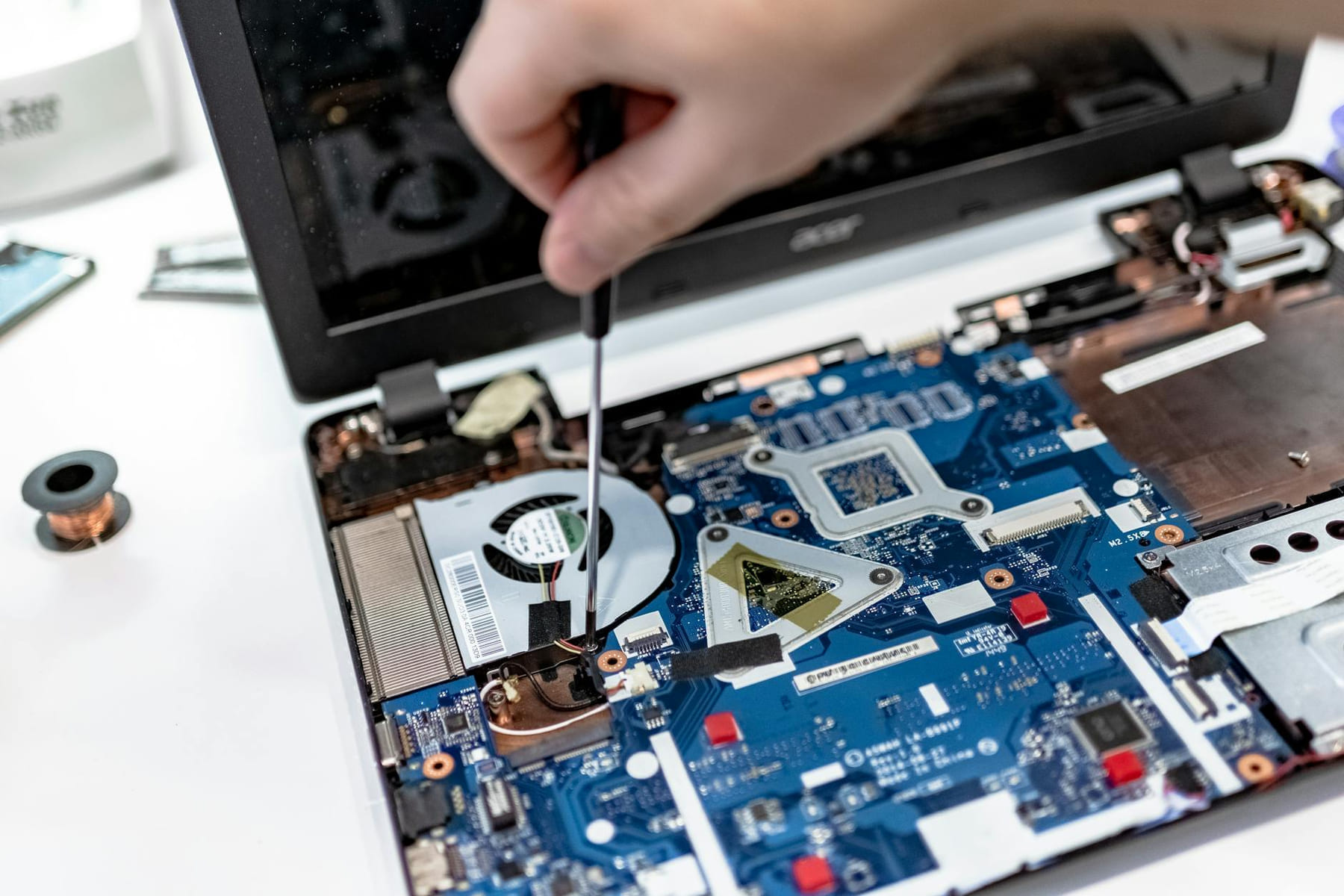
Let’s be honest, technology can be frustrating. We all rely on our smartphones, laptops, smart TVs, and countless other gadgets daily, and when they inevitably stop working, it can feel like a major setback. You’re not alone - troubleshooting tech problems is a surprisingly common experience, even for those who aren’t “tech experts.” The good news is, with a little knowledge and a systematic approach, you can tackle most common issues yourself, saving you time, money, and a whole lot of frustration. This guide is designed specifically for beginners, breaking down troubleshooting into manageable steps and offering practical tips you can use right away.
Understanding the Basics: Why Things Go Wrong (for Beginners)
Before we dive into specific fixes, let’s talk about why things break. Technology is complex, and a single small issue can often cascade into a larger problem. Here are some common culprits:
- Software Glitches: Operating systems, apps, and drivers are constantly being updated, and sometimes these updates introduce bugs or conflicts.
- Hardware Issues: Cables can fray, ports can become loose, and components can simply wear out over time.
- Connectivity Problems: Wi-Fi signals can be weak, Bluetooth connections can drop, and internet providers can experience outages.
- User Error: Let’s face it - sometimes we accidentally click the wrong thing!
Recognizing the potential cause is the first step in resolving the issue. Don’t immediately assume it’s a serious hardware failure. Often, a simple software fix or a loose connection is all that’s needed.
The Observation Phase - What’s Actually Happening?
Don't just panic! Take a deep breath and really observe what’s going on. Instead of thinking "My laptop won't turn on," try to describe it more precisely: “When I press the power button, the screen remains black, and there’s no fan noise.” Detailed observations help you narrow down the possibilities.
- Identify the Symptoms: What exactly isn't working? Be specific.
- When Did It Start? Was it sudden, or did it gradually get worse? Did it happen after a specific event (like installing a new app or updating software)?
- What Were You Doing? Were you browsing the web, playing a game, or using a particular app when the problem occurred?
- Error Messages: Are there any error messages displayed? Write them down exactly - they’re invaluable clues.
For example, if your smart TV keeps freezing, note if it happens during specific channels, when streaming, or only when using certain apps. This information will be crucial when researching solutions.
The Simple Fixes - Start with the Obvious
Seriously, start here. Often, the solution is incredibly simple and takes just a minute or two. Here are some common quick fixes:
- Restart Everything: This is the golden rule of troubleshooting. Restart your device, your router, and any connected peripherals. It clears temporary files and resets the system.
- Check Cables: Ensure all cables (power, HDMI, USB, etc.) are securely plugged in. Try a different cable if possible.
- Update Software: Outdated software can cause conflicts. Check for updates for your operating system, apps, and drivers.
- Check Wi-Fi/Internet Connection: Make sure you’re connected to the internet and that the signal strength is good. Try restarting your router.
- Clean the Device: Dust and debris can cause overheating and other problems. Gently clean the exterior of your device with a microfiber cloth.
Diving Deeper - Research and Targeted Solutions
If the simple fixes don’t work, it’s time to do some research. Don’t just guess - find reliable information. Here’s how:
- Manufacturer’s Website: Start with the manufacturer’s support page for your device. They often have troubleshooting guides and FAQs.
- Online Forums: Websites like Reddit (r/techsupport, r/applehelp, etc.) and manufacturer-specific forums can be incredibly helpful. Search for your specific problem - someone else has likely encountered it before.
- Google (or your preferred search engine): Use specific keywords to describe the problem. For example, "Samsung TV freezing after update" or “iPhone battery draining quickly.”
- YouTube Tutorials: Visual guides can be incredibly helpful, especially for hardware-related issues.
Example: Let’s say you’re having trouble with Bluetooth connectivity. Searching “Bluetooth not connecting iPhone” will lead you to numerous tutorials and forum discussions offering solutions, such as resetting the Bluetooth module or forgetting and re-pairing the device.
Advanced Troubleshooting (Proceed with Caution!)
These steps are more involved and should only be attempted if you’re comfortable with basic computer concepts. If you’re not, it’s best to seek professional help.
- Driver Updates: Outdated or corrupted drivers can cause a wide range of problems. Use Device Manager (Windows) or System Information (macOS) to check for driver updates.
- System Restore (Windows): If the problem started recently, restoring your system to a previous state might undo the changes that caused it.
- Safe Mode: Booting your computer into Safe Mode can help determine if the problem is caused by a third-party application or driver.
- Hardware Diagnostics: Many devices have built-in hardware diagnostics tools. Consult your device’s manual for instructions.
Section: Common Beginner Problems and Quick Solutions
Let’s address some frequently encountered issues and provide targeted solutions:
- Slow Computer Performance: Close unnecessary programs, run a disk cleanup, and defragment your hard drive (if applicable).
- Printer Not Printing: Check the ink/toner levels, ensure the printer is connected, and verify that the correct printer is selected in your print settings.
- Wi-Fi Dropping Connection: Move closer to the router, check for interference from other devices, and consider upgrading your router.
- App Crashing: Update the app, clear the app’s cache and data (in your device’s settings), or reinstall the app.
Conclusion: Don’t Be Afraid to Ask for Help
Troubleshooting can be challenging, but it’s also a valuable skill. By following these steps, you can confidently tackle many common tech problems and avoid unnecessary frustration. Remember to be patient, methodical, and don’t be afraid to seek help from online communities or professional technicians when needed. Most importantly, embrace the learning process - every problem solved is a step towards becoming a more confident and capable consumer tech user. And hey, sometimes the best solution is just a good cup of coffee and a fresh perspective!
Focus on the part that solves the problem
In a topic like Consumer tech, the strongest starting point is usually the one you will notice and use right away. That is often more helpful than adding extra features too early.
Before spending more, it is worth checking the setup, upkeep, and learning curve. Small hassles matter here because they are usually what decide whether something stays useful or gets ignored.
It is easy to underestimate how much clarity comes from removing one unnecessary layer. In practice, trimming one complication often does more for Tech Troubles? Simple Fixes for Beginners than adding one more feature, one more product, or one more clever workaround.
Keep This Practical
The best beginner-tech move is to solve one friction point at a time. Pick the device or habit that will save you the most confusion this week, and learn that one piece well before adding more.
Tools Worth A Look
If you are still building confidence with consumer tech, the recommendations below are aimed at usability and low-friction setup.
- Data-Ism: The Revolution Transforming Decision Making, Consumer Behavior, and Almost Everything ElseHow to Grow Your Small BusinessHow Do Smart Homes Work? (High Tech Science at Home)Digital Television Fundamentals
Some of the links on this page are Amazon affiliate links, which means I may earn a small commission if you make a purchase through them. As an Amazon Associate, I earn from qualifying purchases.
Related ReadingMore from The Tech Shelf
Tech Starts: Ideas for New Tech Fans
Consumer Tech Ideas for Beginners - Level Up Your Life Whether you’re working from home, commuting, or just trying to escape the chaos of daily life.

Tech Basics: A Beginner’s Look
Don't underestimate the importance of backing up your data and streamlining your workflow. Cloud storage services like Google Drive, iCloud, and Dropbox make it.

Tech Basics: Your New Starting Point
Consumer Tech for Beginners: Your 2026 Guide Consumer Tech for Beginners: Your 2026 Guide Smart Home Starter Kit - Simplifying Your Life Let’s be honest, the world.